
235,715
Delivered orders

Searching someone who can help with assignment help online? Hire our best assignment experts and enjoy the best grade.
orking on your first project using Adobe InDesign? Working with Adobe InDesign can be quite an
rogramming assignments are the tasks and projects which are assigned to the students. These assignments focus on the
W
orking on your first project using
experience as an aspiring graphic designer and student. From seamless integration and support of interactive tools to high precision typography and a more robust alternative to QuarkXPress, you will surely cherish your journey of designing in Adobe.
Adobe InDesign? Working with Adobe InDesign can be quite an experience as an aspiring graphic designer and student. From seamless integration and support of interactive tools to high precision typography and a more robust alternative to QuarkXPress, you will surely cherish your journey of designing in Adobe.
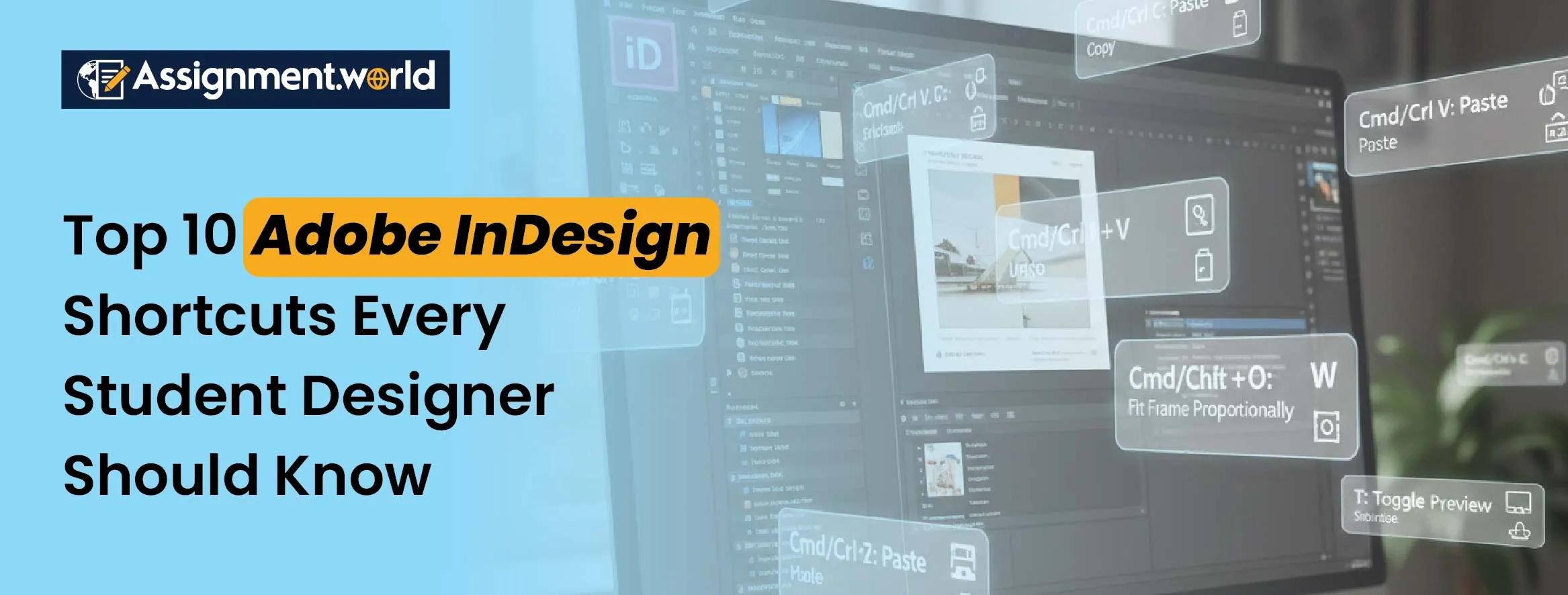
However, in this journey, if you get a grip on the major design shortcuts for navigation and layout, you can increase your speed of completion, streamline your workflow, and personalise your setup accordingly. Considering this usefulness, we have listed all the major Adobe InDesign keyboard shortcuts. However, if you also want a shortcut to our Adobe InDesign grades, you can get assignment help from us today.

Adobe InDesign is a benchmark program used to create print and digital media layouts, including catalogues, newsletters, brochures, postcards, and magazines. It is a page layout software that can assemble elements from other popular applications like Photoshop and Illustrator for photos and vector graphics. It is popular amongst students for its multi-purpose and powerful features, like efficiency in creating multi-page designs, excellent control over fonts, and kernels. Adobe InDesign is also effective in converting documents into web-based publications, supporting various interactive elements. From desktop publishing to helping in digital and print media projects, the tool has made a wide and significant contribution to graphic design, branding, and marketing. However, as a graphic design student, if you are using Adobe InDesign, it can be overwhelming initially; therefore, it is better to learn the InDesign shortcuts as fast as possible.
Key features and tools for which you must learn the InDesign keyboard shortcuts are:
Graphics Integration Tools: It helps with vector and image support, applying blending and shadows, and auto-fitting the images as per the file.
Digital Publishing Tools: Adobe InDesign also has features like interactive PDFs, EPUBS or e-books, which can be exported along with animations.
Typography Tools: You can access ligatures and Glyphs, develop linked text frames, and use advanced text styling.
Page Layout Tools: You can apply master page templates, use columns, grids, and manage documents through multi-page spreads.
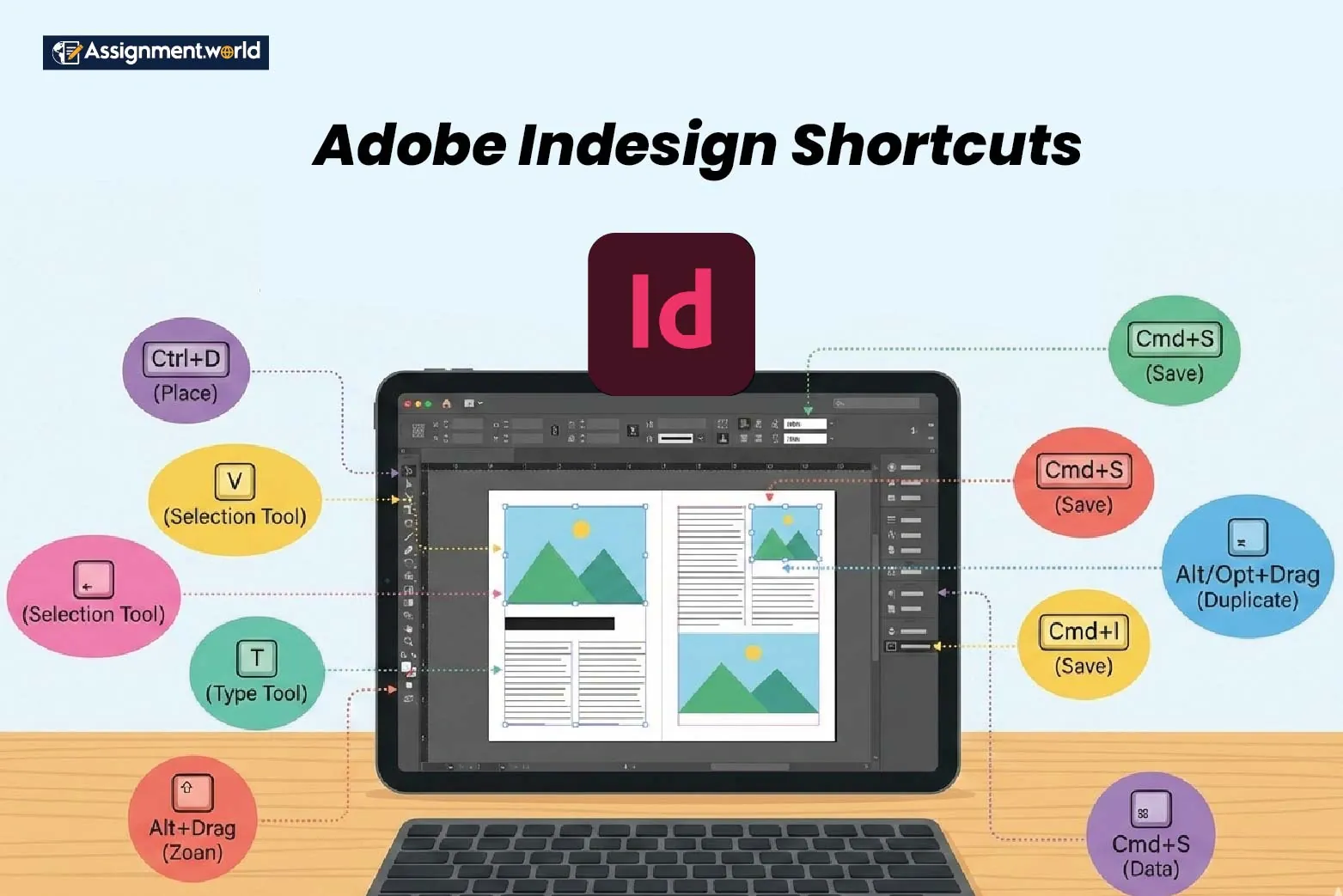
Working on a critical design project and need to submit it asap? The Adobe key commands and shortcuts can come to your rescue. These InDesign key commands can save you time and help you overcome the design fuss. Here, we have listed all the common and best InDesign shortcuts you may need as a student. Check below:
In the Adobe tool, you must use the Type tool to add text frames and choose the characters and paragraph options from the properties panel. Some of the key InDesign keyboard shortcuts for text and typography are:
Ctrl + Shift + T - For Character Panel
Ctrl + Shift + K - To toggle all the caps
Ctrl + R - To align to the right
Ctrl + L - To align to the left
Ctrl + Shift + C - To align to the centre
Ctrl + B - To frame text
Ctrl + Option - For tabs panel
Ctrl + Shift + < or > - To increase and decrease the font size
T - Type tool to select characters
Alt + Shift + Enter- To select a paragraph type
Ctrl + Enter or Ctrl + Windows- To edit a style
You can apply colours to individual objects in Adobe using its LAYER panel to create and manage layers. Some common and best InDesign shortcuts for layering and colour are:
Ctrl + M - To see new colours
Ctrl + Shift + F10 - For Effects Panel
Ctrl + 3 - To hide selection
Ctrl + Alt + Shift + M - To see the new gradient
F6 - For the colour panel
F7 - For the Layers panel
Ctrl + F8 - For the stroke panel
Ctrl + Alt + 3 - To see all
F5 - For the swatches Panel
Through the PAGES panel, you can navigate through various documents in Adobe InDesign. You can also use the hand tool to scroll through pages. Check some common InDesign shortcuts for navigating documents:
Ctrl + Shift + E - For preview mode
W - To switch between preview and normal mode
Ctrl + Y - For story editing
Ctrl + J - To go to the main page
Ctrl + Alt + 0 - To fit the doc in the window
Ctrl + 1 - For actual size
Ctrl + Page Up/ Page Down - For previous and next page
Ctrl + - or + - To zoom in and out
Using the TABLE command, you can specify the number of rows and columns and style the table with different colour strokes. To effectively navigate through data and tables, check these InDesign key commands:
Ctrl + B - For table options
Ctrl + Shift + F9 - For table styles
Ctrl + Alt + Shift + F9 - For cell styles
Ctrl + Shift + L - To convert the text to a table
Ctrl + Alt + Shift + T - For tables panel
Ctrl + Shift + F8 - For text wrap panel
Ctrl + Alt + Left Arrow - To increase Column Width
Ctrl + Alt + Right Arrow - To decrease Column Width
Ctrl + Alt + Up Arrow - To increase row heigh
Ctrl + Alt + Down Arrow - To decrease row height
To optimise the design workflow and to produce high-quality documents, you must learn proper InDesign customisation and efficiency. These are the best InDesign shortcuts:
Ctrl + Shift + K - To customise the menu
Ctrl + Shift + J - For object export options
Ctrl + K - For preferences
Ctrl + Alt + Shift + V - For variables
Ctrl + Shift + V - To paste without any formatting
Ctrl + Shift + X - For cross-referencing
Ctrl + Alt + Shift + X - For indexing
Ctrl + Alt + Shift + O - For Preflight
Ctrl + Alt + K - For keyboard shortcuts
Ctrl + Alt + Shift + J - For conditional text
Adobe InDesign is not just about creating documents but also about managing the documents through object organisation and linking with group projects. Some Adobe InDesign keyboard shortcuts for document management are:
Ctrl + Alt + P - For document set-up
Ctrl + Alt + Shift + I - For file information
Ctrl + N - For a new document
Ctrl + Alt + Shift + P - For package
Ctrl + Alt + O - For browsing
Ctrl + E - For file export
Ctrl + Shift + S - For saving the file
The art of using Adobe InDesign also lies in how effectively you navigate through its features. Not just basics, it is important that you learn the Adobe InDesign shortcuts for its advanced techniques. Check some of these InDesign key commands here:
Ctrl + Shift + F - For Font search
Ctrl + Shift + N - For a new layer
Ctrl + B - For frame fitting options
Ctrl + Shift + H - To see hidden characters
Ctrl + Shift + U - To update the content
Ctrl + Shift + Y - To give transparency effects
Ctrl + Alt + Shift + K - For tracking and kerning
Ctrl + Alt + U - For updating links
Ctrl + Alt + Shift + S - For dynamic spelling
You can export to a PDF or share the document in InDesign. It can be messy and time-consuming if you do not know the InDesign keyboard shortcuts for sharing and exporting. Learn a few handy Adobe InDesign keyboard shortcuts for exporting here:
Ctrl + Alt + E - To export for design editions
Ctrl + Shift + Alt + E - To export as PNG
Ctrl + Shift + M - To export as PDF
Ctrl + T - To export to EPUB
Ctrl + Shift + P - For pages tool
Ctrl + Shift + W - To close all windows
Ctrl + Alt + J - For the content collector tool
The reach and impact of Adobe InDesign is unparalleled in the design world. Through your Adobe InDesign project, you can also learn and develop your core skills in graphic design. However, navigating many menus and grappling with the technicalities can sometimes be stressful.
Therefore, you must know all the InDesign shortcuts to concentrate only on your design and not the technicalities. The above-mentioned list of InDesign shortcuts is helpful. If you want complete help with assignments, get our professional Adobe InDesign assignment help services today from skilled designers.